
What it does
- Jump by any amount. 10 s, 30 s, 5 min, 1:30. Pick a preset or type one, hold to keep going.
- Scrub to an exact point on a progress bar.
- Play and pause.
- Fullscreen on and off, including web players in Chrome and Brave.
- Several screens. Pair a phone and a browser and switch between them.
It works with YouTube, Netflix, Prime Video, Twitch, VLC and anything else that plays video, because it doesn't talk to the apps. It talks to the device, and the device acts on whatever is in front.
How it works
Skipper
the phone in your hand · Android, iPhone
The remote.
Skipper Screen
the Android phone playing video
Receives commands and carries them out on the app in front.
Skipper for Chrome
desktop Chrome or Brave
Makes the video in any tab controllable.
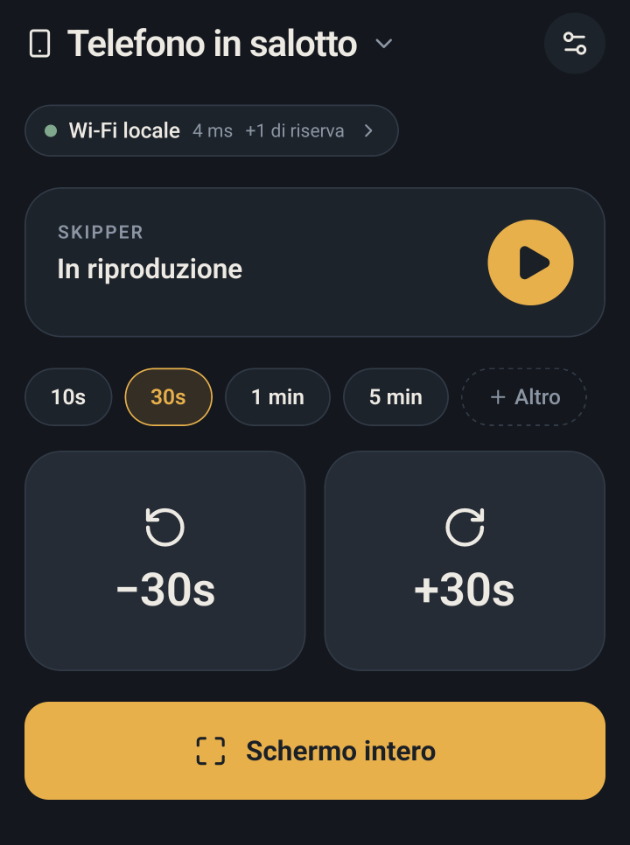
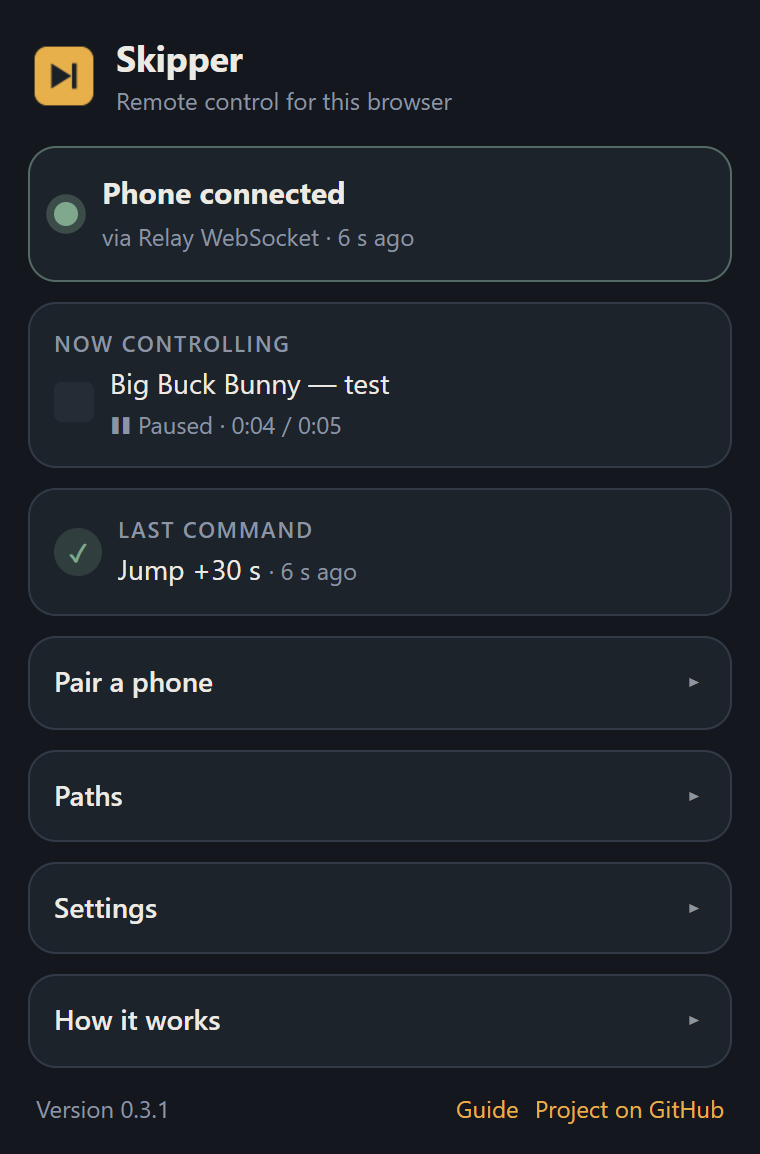
Home Wi-Fi hiccups, so Skipper never relies on one connection. It keeps up to six open at the same time (local Wi-Fi, WebRTC peer-to-peer, WebSocket and HTTP through your relay server, MQTT, Bluetooth) and sends each command over the best one alive. When one drops, the next is already connected.
Every command is signed with a key derived from a pairing code only your devices know. A relay server or MQTT broker can pass messages along, but it can't forge a command or replay an old one.
Install
-
Download
From the latest release:
relay-controller-<version>.apkon the phone you'll holdrelay-receiver-<version>.apkon the Android phone that plays video
Android asks you to allow installs from your browser or file manager. That's expected for apps outside the Play Store.
iPhone as the remote: in AltStore or SideStore, go to Browse → Sources → + and add
https://sandoramix.github.io/slop-remote-relay/altstore.json. -
Set up Skipper Screen
Open it on the phone that plays video, tap Salva e riavvia, and a QR code appears. Then work through the permission list on the same screen:
- Notification access: finds the playing video and seeks to the exact second.
- Accessibility: for fullscreen. It reads the screen only to find the fullscreen button and never records or sends it.
- Battery optimisation and autostart: skip these and the screen stops listening overnight.
On Android 13+ Accessibility may be greyed out for sideloaded apps. Open App info → ⋮ → Allow restricted settings first.
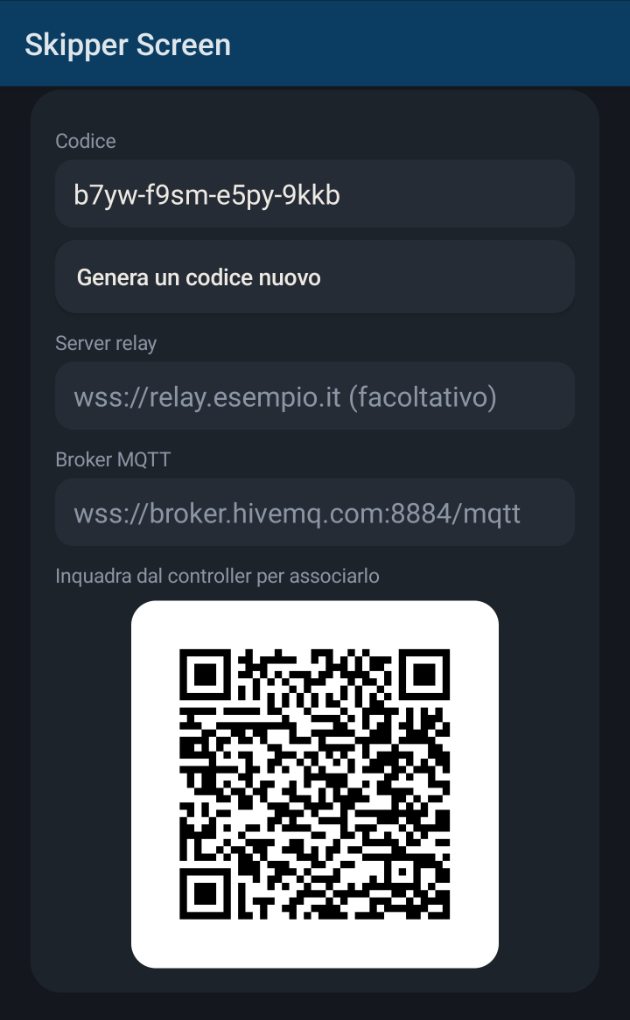
The pairing code and its QR code 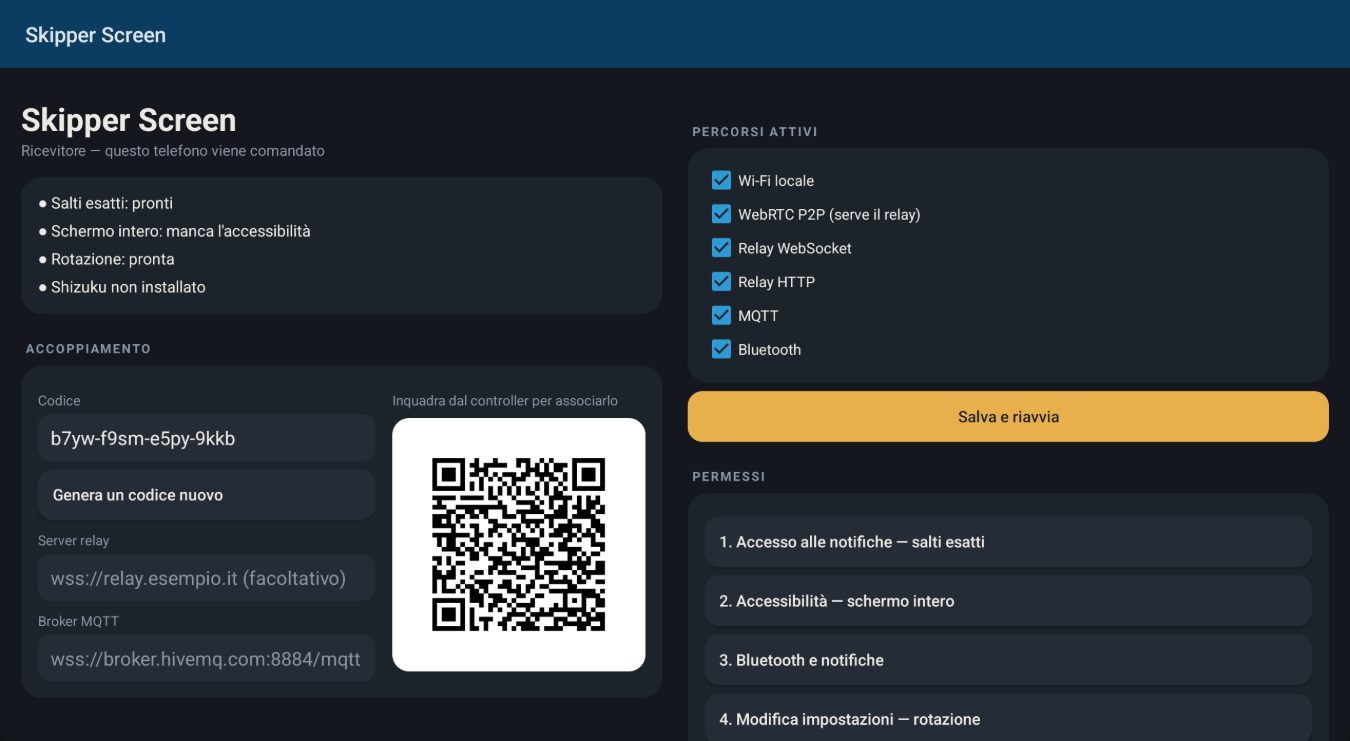
On a tablet in landscape -
Pair the remote
Open Skipper on the phone in your hand and scan the QR code, or type the same pairing code. The remote shows which connection it's using, for example Wi-Fi locale · 6 ms.
-
Add a browser optional
Install Skipper for Chrome, click its icon and follow the three steps: relay address, pairing code, scan the QR code with your phone.
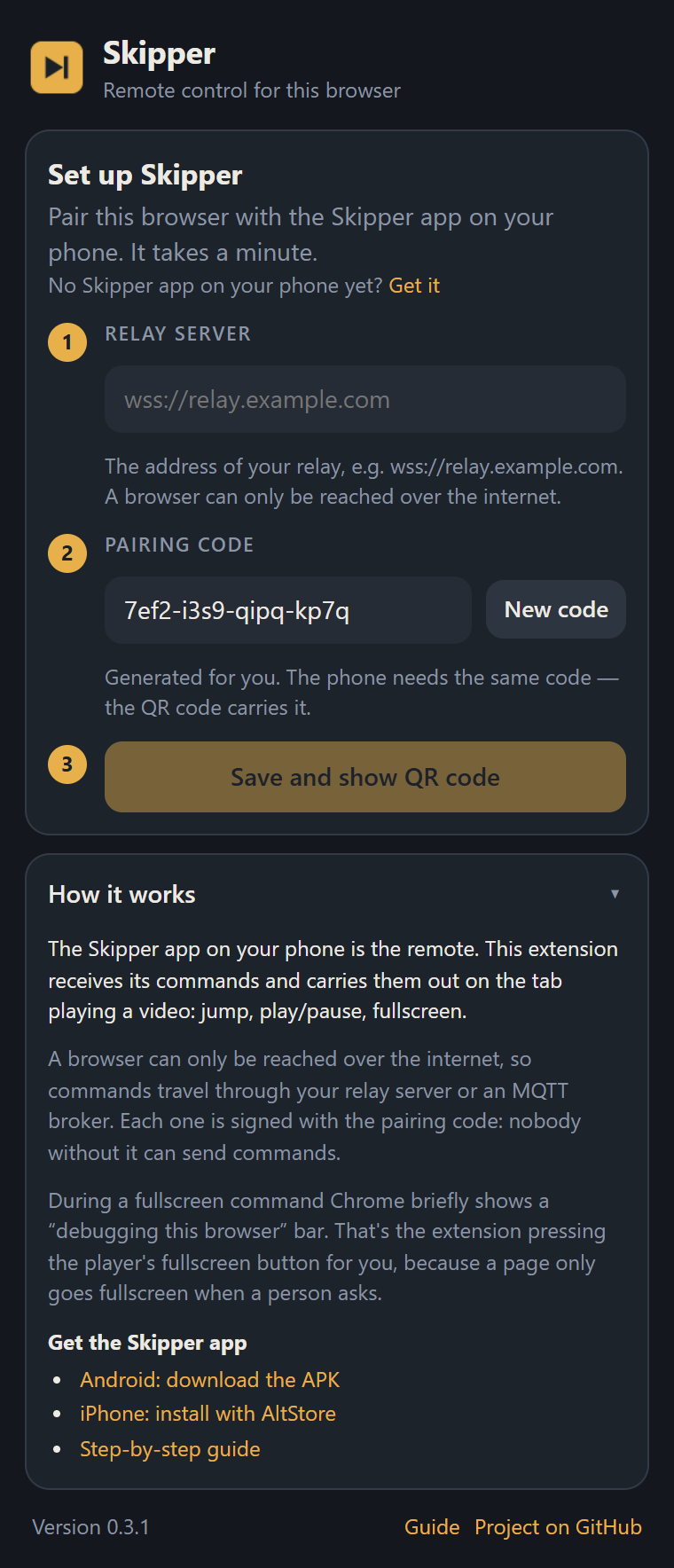
The extension's setup Not in the store yet? Download
relay-extension-<version>.zip, unzip it into a folder you'll keep, openchrome://extensions, turn on Developer mode and click Load unpacked.A browser is reachable only over the internet, so it needs a relay server (below) or MQTT.
Away from home: the relay server
On the same Wi-Fi nothing else is needed. To use the remote from elsewhere, or to control a browser, run the small relay server somewhere both devices can reach:
docker run -d --name relay -p 8080:8080 ghcr.io/sandoramix/slop-remote-relay-server:latestPut it behind HTTPS (for example with Caddy) and enter wss://your.domain in each app. The server sees only an anonymous room id. It never learns your pairing code and stores nothing.
A note on this project
Skipper is an experiment: code, tests and docs were written by AI to find out whether the idea holds up. It works and it's free, but expect rough edges, and don't count on long-term maintenance.